
15 MLRws
MLRws is a six-track sample-cutting instrument with grid and gridless workflows. It supports on-card sample storage, recording/playback, and USB grid interaction. In gridless mode, Main/X/Y plus switch manage track selection, level/speed/start-position/radiate behavior, while pulse/CV I/O provides reset/clocking and CV envelope/pitch triggers.
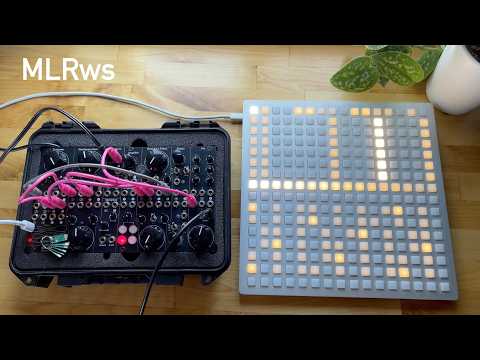
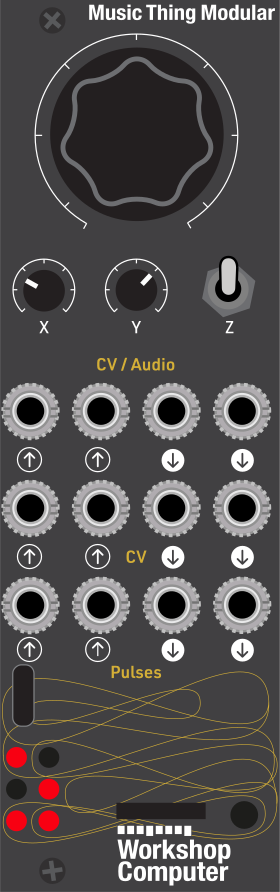
Panel
Grid mode
This is the main MLRws performance interface: six tracks of looping audio, all driven from a monome or DIY grid / midigrid.
Everything here works the same whether the grid is plugged straight into the Computer (USB host) or reaches it through a norns running gridproxy (USB device). The README covers setting up each one.
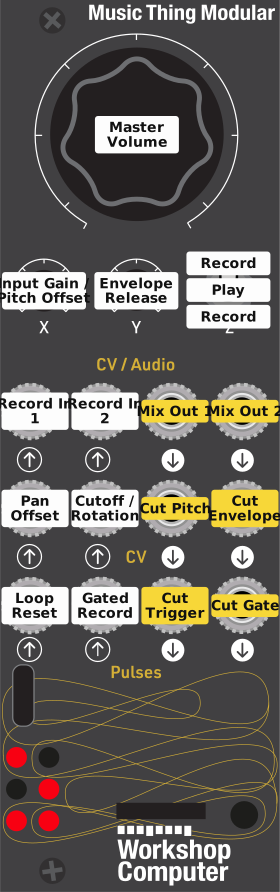
Hardware in and out
In grid mode the interface on the Computer itself is intentionally minimal. Tracks are recorded as mono ADPCM, and each one can be panned anywhere between Audio Out 1 and Audio Out 2 and run through its own low-pass filter. Knob X is the input gain and the monitor level while armed/recording. Knob Main is the master output volume.
Audio In 1 / Audio In 2 are the record sources: which input is captured into a track is set by that track's input selection on the REC page (or auto-picked from whichever single input is plugged in if you haven't chosen).
CV In 1 / CV In 2 modulate pan and the filter cutoff (or rotation) of chosen tracks (see CV inputs below).
Pulse In 1 / Pulse In 2 act as transport-style triggers (see Pulse inputs below).
CV and pulse outputs are driven by output-enabled cut/gate activity (manual taps on the CUT page, pattern playback that replays cut press/release timing, and recall playback that replays cuts):
- CV Out 1: chromatic note (sample-and-hold). Output-enabled CUT keys map to pitch chromatically left-to-right, with adjacent rows tuned like guitar strings: mostly perfect fourths, with a major-third break between track rows 3 and 2. On 16-row grids the bottom half repeats the same pitch map as the top half. Knob X adds a continuous ±24-semitone (~±2 V) offset on top of the held note.
- CV Out 2: ASR envelope that attacks from its current value to roughly +5 V when an output-enabled CUT key is pressed, sustains while the key/gate is held, and releases back toward the resting −1 V floor when the gate drops. Knob Y sets the release time when the gate releases (10 ms at fully left, ~3 s at fully right). Hold the front-panel switch Down with no track armed or recording, then move Knob Y to set attack time (instant to ~1 s).
- Pulse Out 1: 20 ms trigger fired by output-enabled CUT-page track-row keys, including taps on empty track rows
- Pulse Out 2: gate. High while any output-enabled CUT-page track-row key is held, including held keys on empty track rows, or while an output-enabled gate-mode track is playing
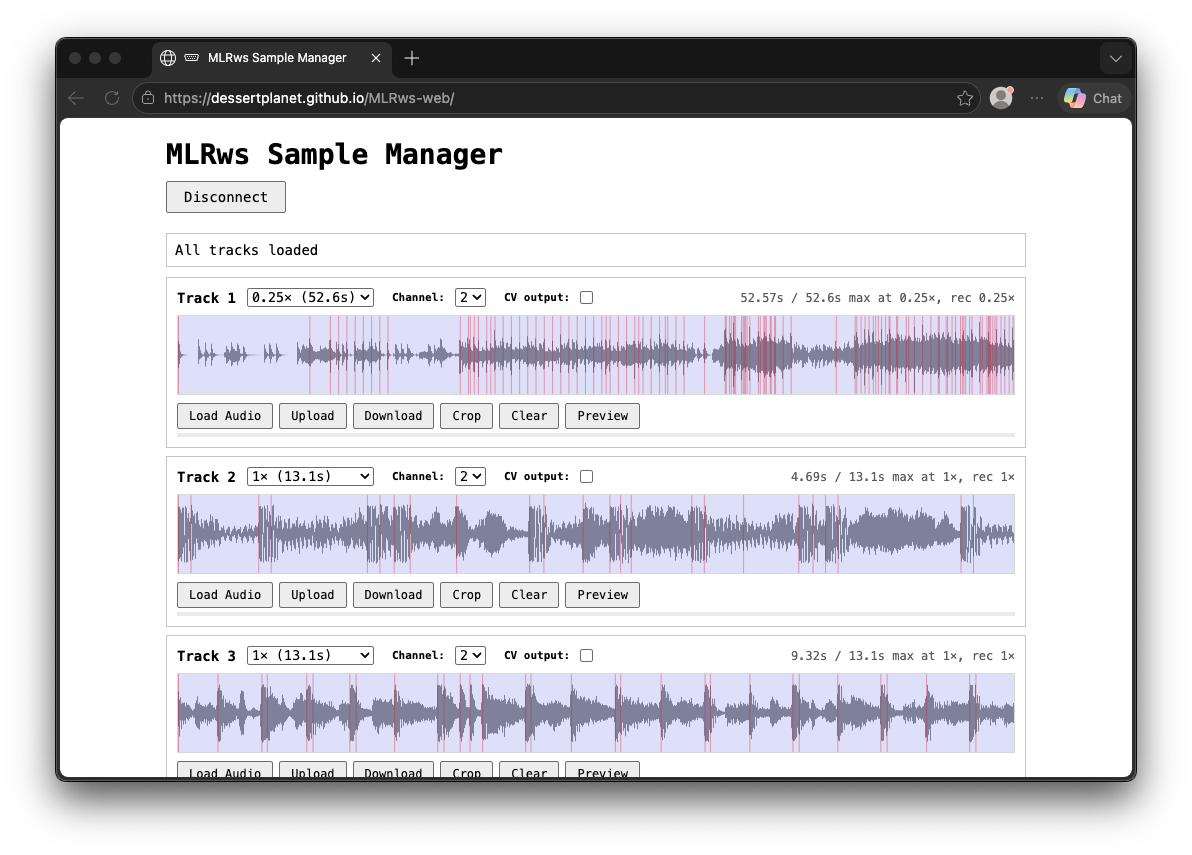
For populated tracks, CV1 pitch updates, CV2 envelope gates, Pulse Out 1 triggers, and Pulse Out 2 gates are disabled by default and can be enabled per track with the sample-manager web app's CV output toggle. Empty tracks always drive CV/pulse outputs so they can be used as pitch/envelope/gate rows before audio is loaded.
CV inputs
Both CV inputs act on the last-touched track (the last track row you pressed on the CUT or REC page) unless you choose otherwise. In the sample-manager web app you can tick any set of tracks for each input instead, to modulate several tracks at once.
- CV In 1: pan offset. Shifts the target tracks' pan away from where you set it on the grid: 5 V covers the full width (12 pan steps), so 0 to +5 V sweeps a hard-left track all the way right and −5 to 0 V sweeps a hard-right track all the way left. It's clamped at the edges.
- CV In 2: filter cutoff (the default) or rotation, chosen in the web app:
- Filter cutoff: 0 V (or below) is the darkest setting and +5 V is fully open, continuously and with no glide. While CV In 2 is plugged in, the filter keys are ignored on its target tracks.
- Rotation: turns the target tracks' whole recording. The playhead still wraps to the first column (or the loop start), but "the start" of the audio moves by a share of the track length, so a loop scrubs through the material. 0 V is normal and +5 V turns it by the range set in the web app (100% is almost a full turn). New rotations land at the next wrap or cut.
When a track stops being a target, or you unplug the cable, the track keeps the last value the CV gave it. Hold DELETE for 5 seconds (see Delete) to put them all back. CV moves are live only: they aren't recorded into patterns or saved.
Pulse inputs
Both pulse-in jacks act as transport-style triggers in grid mode:
- Pulse In 1: loop reset. A rising edge resets the playhead of every track that is currently playing and has an active CUT-page loop, jumping each one to the loop's start column. The loop remains active; only the playhead jumps. Tracks without an active loop, and stopped tracks, are unaffected. (Matches gridless mode, where Pulse In 1 is also the reset trigger.)
- Pulse In 2: gated record. While a track is armed via the REC page, holding Pulse In 2 high records into that track for as long as the gate is high. Recording starts on the rising edge and stops on the falling edge. The usual record gates still apply (a track must be armed, recording must not already be in progress, and the per-recording sample limit must not have been reached). While pulse-gated recording is active, the front-panel switch will not interrupt it. Recording automatically stops if the time limit is reached.
Pulse Out 1 and Pulse Out 2 follow output-enabled cut/gate activity as described in Hardware in / out above.
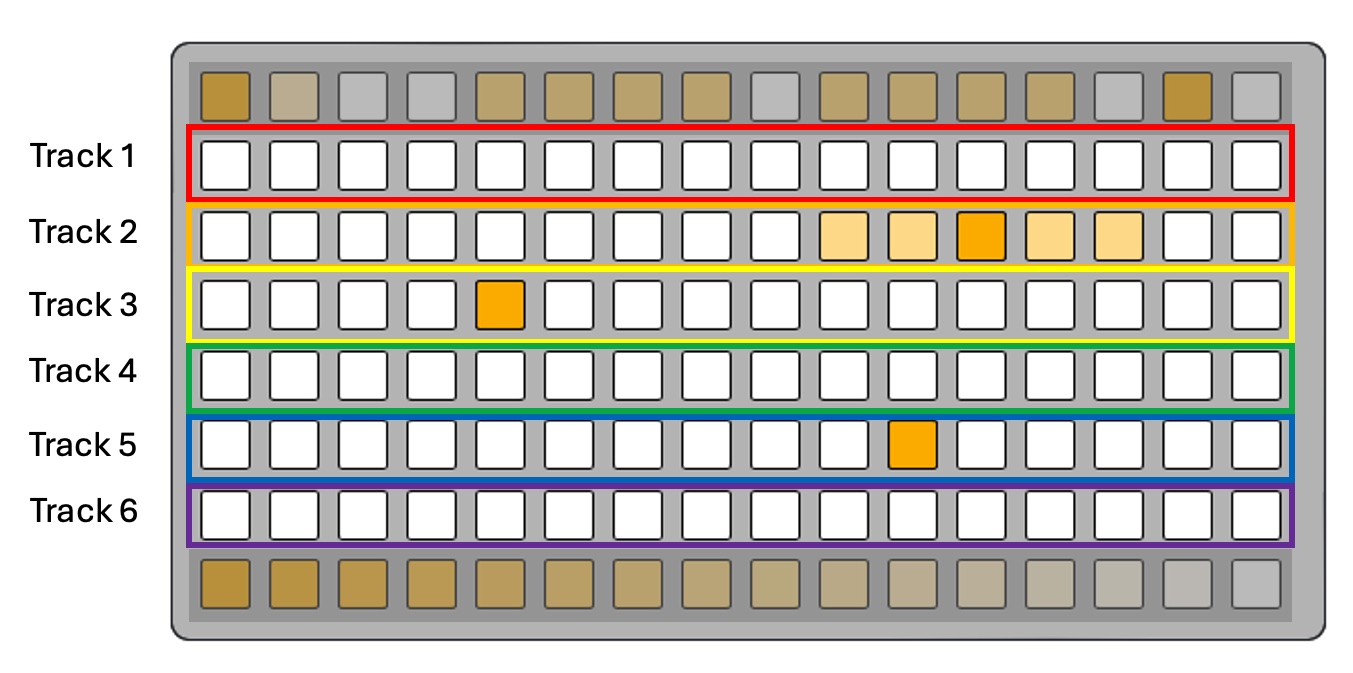
Track layout
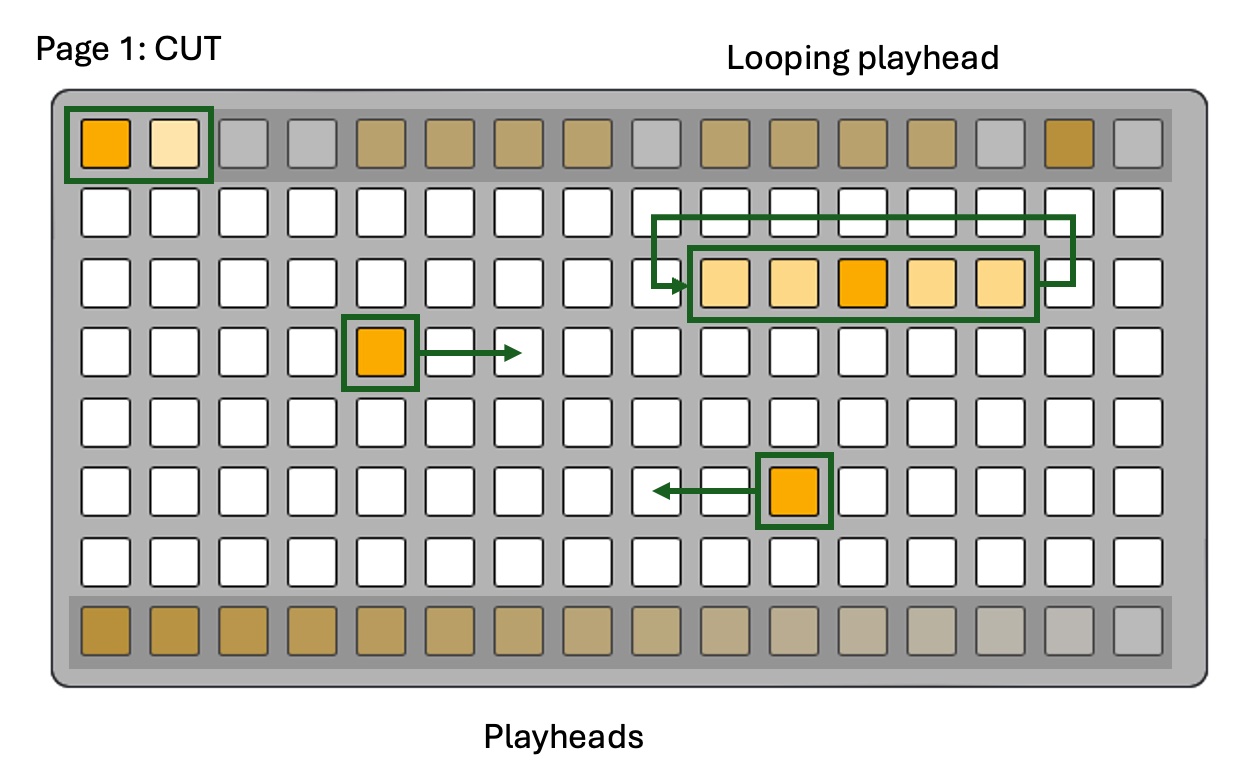
Central to the grid layout on both pages is that the middle six rows of the grid are organized into horizontal tracks, one row per track for tracks 1–6 (top to bottom). The top row is reserved for navigation/patterns/recalls and the bottom row is the master-volume gradient bar.
The top and bottom keys
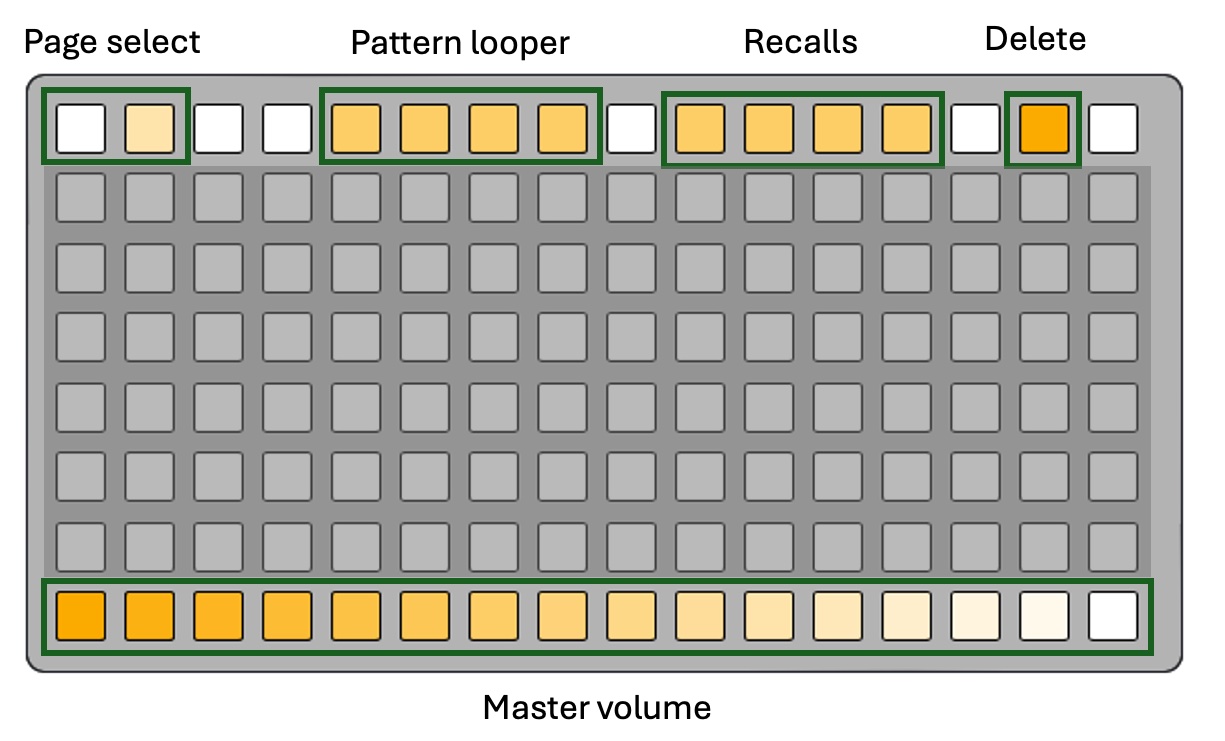
The keys at each of the four grid edges have common functionality no matter which page you are on in MLRws.
Page selection
The two grid keys at the top left of the grid control which page is selected between page 1: CUT and page 2: REC.
Pattern looper
Patterns are timed motion recorders. They capture every grid-based event you generate (cuts, loops, speed changes, reverse toggles, volume, pan and filter changes, master moves, even other patterns/recalls firing) and play them back in a free-running loop.
CUT-page key releases are recorded too, so output-enabled pattern playback recreates both the Pulse Out 2 gate length and the CV2 ASR envelope sustain. On 16-row grids, the bottom-half keyboard layer is recorded into patterns as CV/pulse gestures as well, without affecting audio track playback. Overlapping keys are treated monophonically per row/layer: a newer press replaces the previous held key without dropping the gate.
You interact with patterns using the group of 4 dim LEDs to the right of page selection in the top row. A dim pattern slot indicates an empty one. press an empty pattern slot to arm the looper. Your next grid gesture starts the recording and recording continues until you press the recording pattern button again, at which point loop playback starts immediately.
Once recorded, pattern playback can be toggled on/off in the patter looper area of the grid. To record a fresh pattern over an existing one, first clear the old one by holding the DELETE key and then touching the pattern you want to overwrite, which will clear it.
Multiple patterns can play simultaneously. Each pattern's loop length is determined by the time between record-start and record-stop, so you can layer different-length loops.
Recall
Recalls are instant snapshots of every track's state (current cut position, loop region, speed, reverse, volume, pan, filter, gate flags). They have no timing: pressing a recall instantly places all tracks into the snapshot state.
Recall are controlled by using the second group of 4 dim LEDs to the right of the pattern looper in the top row. Touch an empty recall slot to capture the current configuration as a recall. Recall a captured recall from any other grid state by touching the corresponding recall key. Note that when you are in a grid state that does not correspond to any recorded recall and you switch to a recall with the recall keys, pressing the same recall key will switch you back to your previous state without having to capture that state- so you can easily have momentary switches to recalls without losing progress.
Recalls are themselves recorded into patterns, so you can build a pattern that triggers different recalls at different times.
Overwriting a recall requires that you clear the old one by holding the delete key then pressing the recall key that you want to clear.
Delete
The delete key is used to clear data from various places in MLRws. Hold it down and then press a pattern or recall to clear it. Hold it down and press the record-arm button for any track with audio on it and that audio will be cleared.
Hold the delete key by itself for 5 seconds to reset the current REC page parameters to defaults. The delete key flashes three times quickly to confirm. This resets current speed, reverse, loop, mixer level, gate mode, track groups, and active recall state, puts every track's pan back hard to its input side, opens every filter, and clears held CV pan offsets and rotations, then saves those defaults to flash. Currently playing patterns are stopped so they do not immediately re-apply old automation. It does not reset master volume, or delete audio, patterns, or saved recall slots.
Saving
MLRws saves your settings to the card by itself, so they come back after a power cycle: speed, reverse, loops, levels, pan, filter, gate modes and the master level are written to flash within about 4 seconds of a change, and patterns, recalls and groups are saved as soon as you record, capture or clear them. Recorded audio is written to flash when the recording finishes.
Grid-based main volume control
The bottom row on the grid is used to represent the main volume (also controlled by the Main knob on the Computer). Volume control is "last-write-wins" so updating main volume via grid will take precedence over the main knob control until the main knob's next change.
CUT page: playhead cutting and loop-a-section
The CUT page is the performance heart of MLR. Each track row is a scrub bar that spans the full width of the grid (16 cells on a 16-wide grid, 8 cells on an 8x8). The grid column you tap maps proportionally to a position in that track's audio.
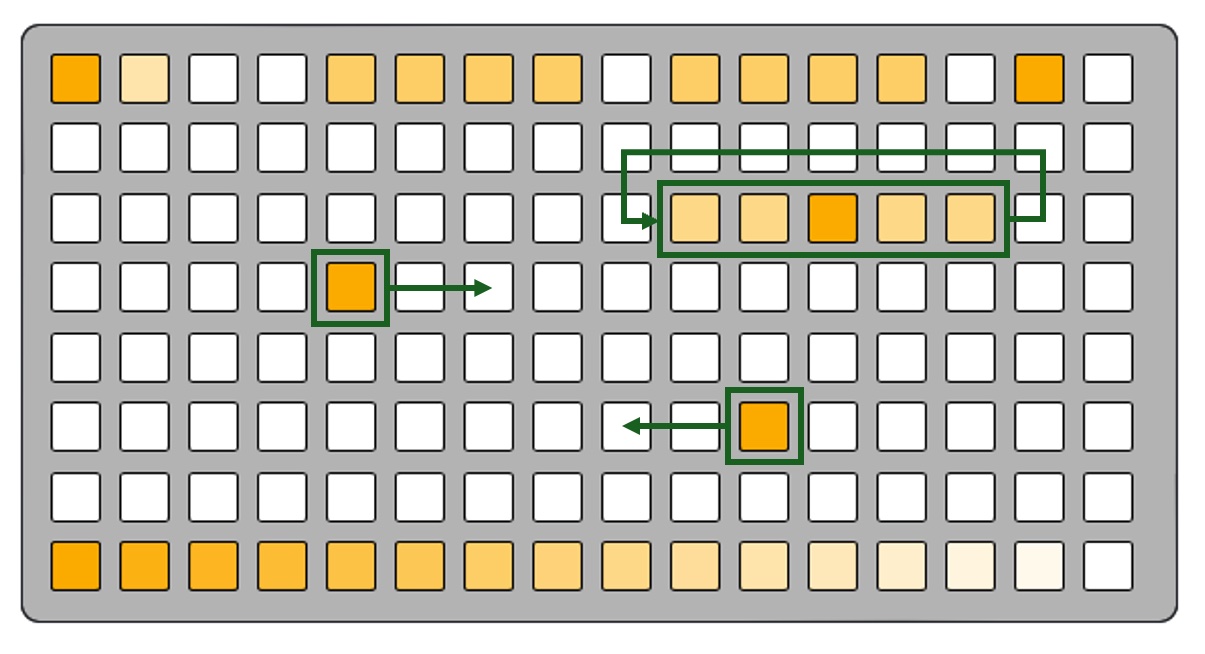
- Tap any column on the row: jump the playhead to that position and (re-)start the track. The bright cell tracks the playhead in real time.
- Hold 2+ keys on a row: define a loop region between the lowest and highest held keys. The loop region stays dimly lit while looping. Releasing all keys leaves the loop in place.
- Tap a single key inside or outside an active loop: clears the loop and cuts to that position.
- Delete + any cut key on a row: if the track is playing, stop it (the loop, if any, is left in place so a second Delete + key clears it). If the track is already stopped and has a loop, that press clears the loop instead.
Output-enabled CUT keys update CV1, gate the CV2 ASR envelope, trigger Pulse Out 1, and hold Pulse Out 2 high while held. Empty track rows are always output-enabled and act as chromatic CV keyboards. Pitch runs left-to-right by semitone with guitar-like row tuning. Empty top-half rows show a dim major scale guide with brighter root notes while active or lingering; populated rows never show the guide. On 16-row grids, lower-half rows 9-14 provide the same CV/pulse keyboard and always-visible guide; the bottom corner keys, pressed simultaneously, toggles that guide.
REC page: input, pan, mixer, reverse, filter, and speed
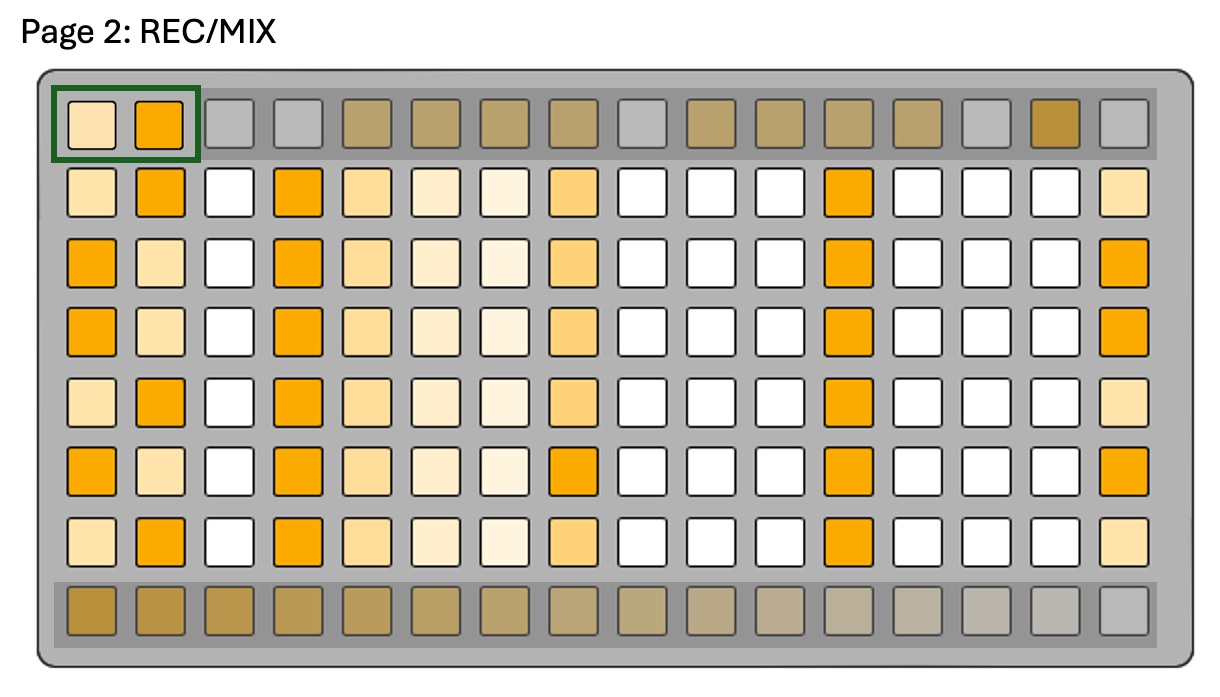
The REC page (page 2) is the per-track parameter editor. We will break this page into parts for simplicity below.
Record arm and input
On all grids, col 0 arms a track for recording. On 16-wide grids, cols 0 and 1 both arm, and also choose which input the track records from: col 0 = Audio In 1, col 1 = Audio In 2. While a track is armed or actively recording, the selected input's LED carries the record-arm flash.
When a track isn't armed, the two keys show its pan instead: key 1 alone is hard to Audio Out 1, key 2 alone is hard to Audio Out 2, and both at half brightness is centre. The display includes any CV In 1 offset, so you can watch it move.
If you have not manually picked an input for a track, MLRws will auto-select the plugged input when exactly one of Audio In 1 or Audio In 2 is connected. With both or neither connected, it keeps the track's previous input. A new recording starts hard to its input's side.
More details in Recording
Pan
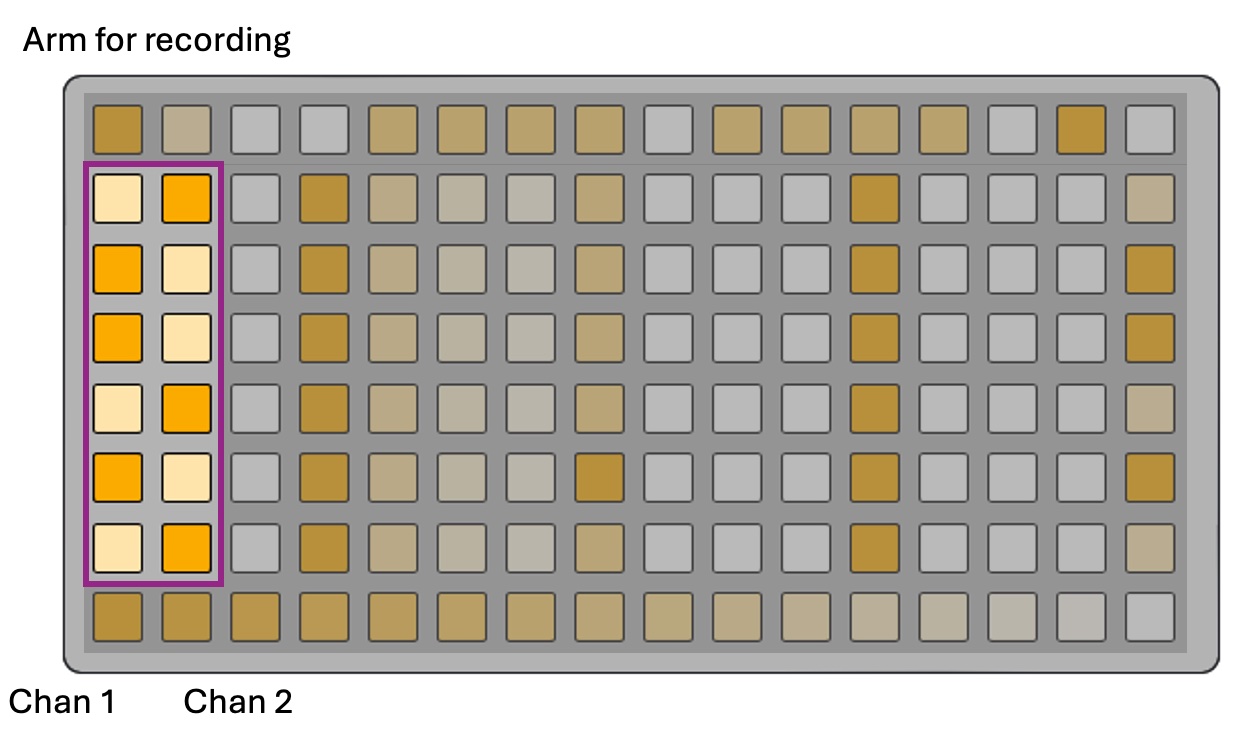
On 16-wide grids each track can sit anywhere between Audio Out 1 and Audio Out 2, using an equal-power pan law (13 positions, from hard Out 1 through centre to hard Out 2).
- Pan mode: with the switch in the middle and nothing armed or recording, hold both keys in cols 0 and 1 on a track row. The rest of that row turns into a pan display: cols 2–7 are the six steps toward Out 1, cols 8 and 9 together are centre, and cols 10–15 are the six steps toward Out 2. Press a key to move the pan there. Release either arm key to leave pan mode (it doesn't arm or record).
- Hop: when a track is panned hard to one side, a single press on the other side's key (col 0 or col 1) hops it across to the opposite side, without arming and without interrupting playback. Pressing the key on the side it's already on arms as usual.
- Glide: on a playing track, pan moves glide at 100 ms per step, so a full hop takes about 1.2 seconds. Stopped tracks jump straight there.
Pan is saved, recorded into patterns, and captured by recalls. CV In 1 can offset it.
Mixer
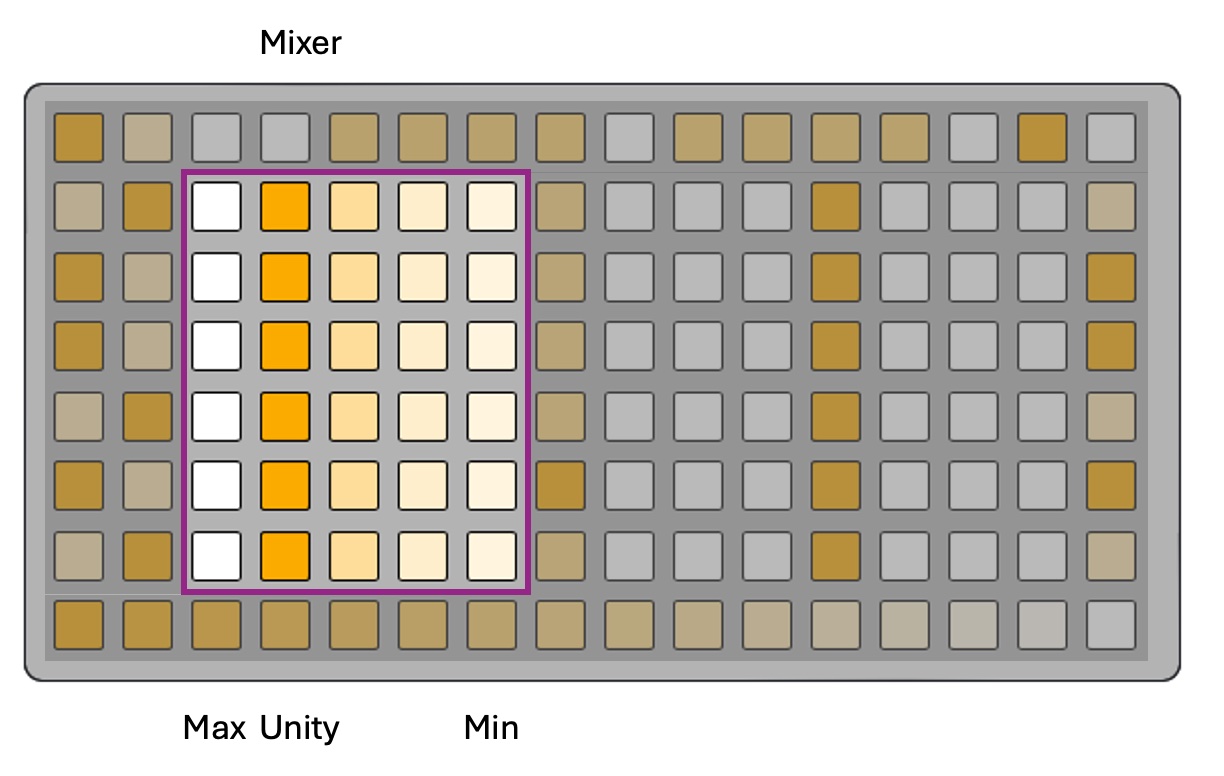
Five discrete level slots. From left to right they are about +3 dB, unity (the default), -6 dB, -12 dB, and silent.
While a track is actively recording, the mixer area turns into a record-progress bar instead of a mixer, indicating how much recording time remains at the current recording speed.
Reverse
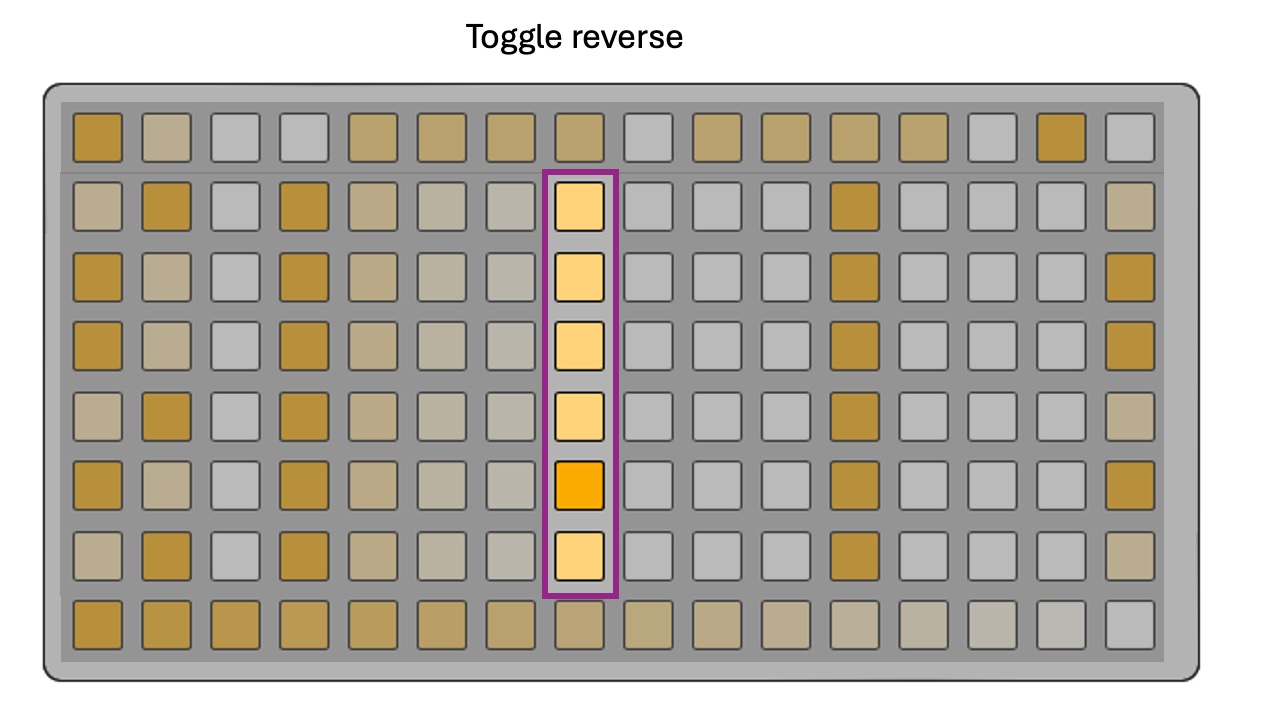
Tap to flip playback direction. LED is bright when reverse is on. On 16-wide grids, holding the reverse key instead shows and sets the track's filter; a quick tap (under about 0.3 s, with no filter key pressed) is still a reverse toggle.
Filter
On 16-wide grids every track has its own 4-pole low-pass filter, modelled on the classic Moog ladder with a gentle fixed resonance (a slight lift just below the cutoff).
- Hold the reverse key (col 7) on a track row. The mixer keys (cols 2–6) on that row turn into the filter: from left to right 250 Hz, 600 Hz, 1.5 kHz, 4 kHz, and open (no filtering). The bright key shows the current cutoff, sliding between keys as it moves.
- While holding, press one of those keys to set the cutoff. Release the reverse key and the mixer keys go back to setting the level.
- Glide: on a playing track the cutoff glides at 500 ms per key, so a sweep from the darkest setting to open takes about 2 seconds. Stopped tracks jump straight there.
- You can hold the reverse keys on several rows at once to watch or set several filters together.
The filter is saved, recorded into patterns, and captured by recalls. With CV In 2 in filter mode, the CV sets the cutoff of its target tracks directly and their filter keys are ignored while it's plugged in.
Speed
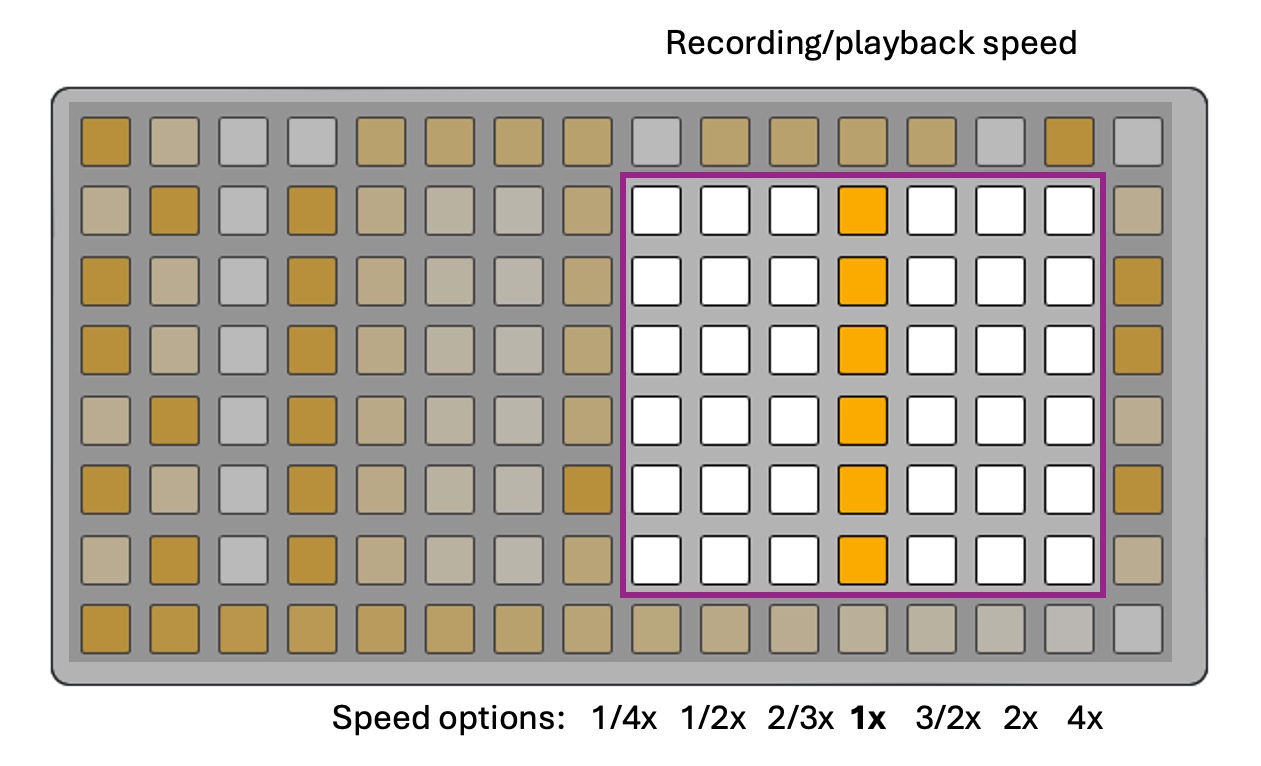
Seven discrete pitch slots, symmetric around 1× speed. From the left, with the corresponding music interval you will hear based on a track recorded at 1x speed, the options are:
- 1/4x speed (-2 oct)
- 1/2x speed (−1 oct)
- 2/3x speed (−5th)
- 1×
- 3/2x speed (+5th)
- 2x speed (+1 oct)
- 4x speed (+2 oct)
Note that these intervals change depending on what speed you originally recorded the track.
Playback toggle and gated playback
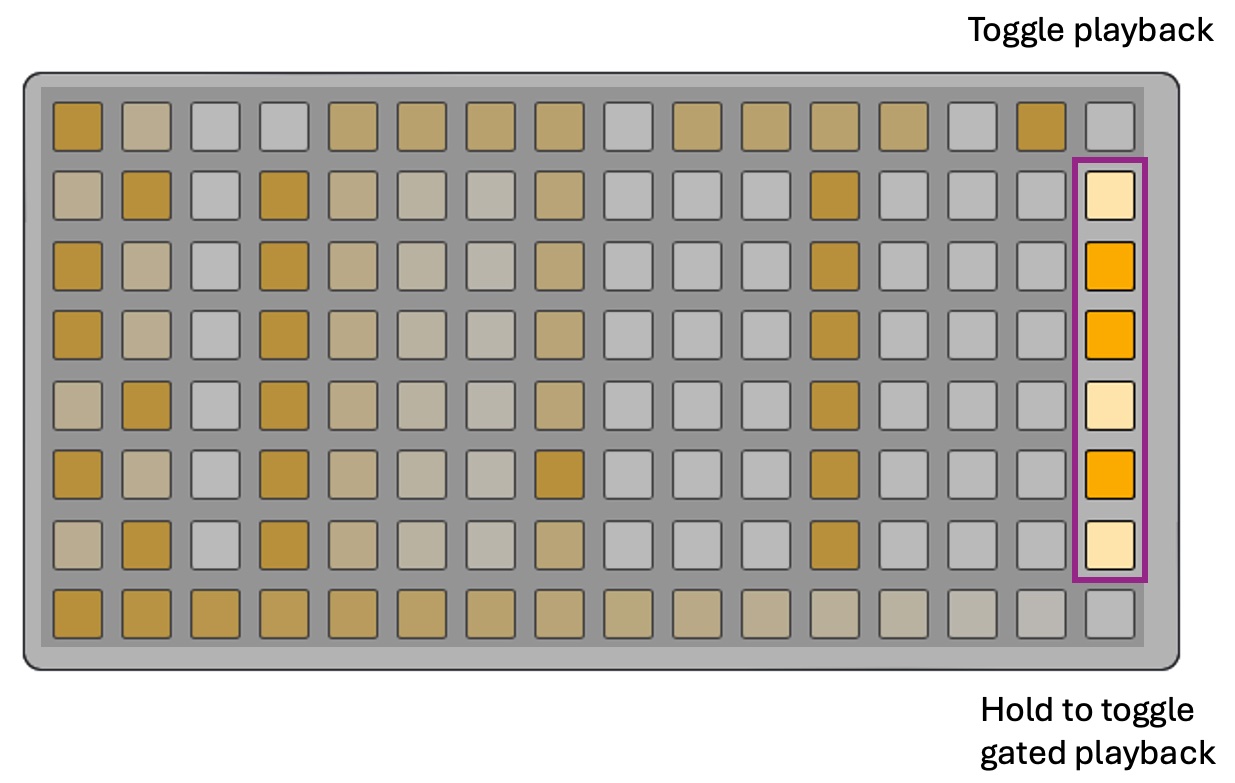
The right most grid column on the REC page controls the playback state of each track. Short press any key in the this column and the corresponding track playback is toggled on/off. Long press one of these and the playback key will flash, indicating "gated playback" mode. In this mode, playback will only occur while a key in the CUT page is held down. Very useful for percussive sounds and very fun to record with the pattern looper.
Gate mode is per-track, so you can have some rows in gate mode and others in normal playback mode. Gate-mode state is saved alongside the recall, so each track returns to its last gated/normal setting after a power cycle.
Track groups
Multiple tracks can be linked into a group so that play/pause behaves as a single choke voice across every member.
- Create a group: hold two or more populated play keys (right-most column) at the same time. Tracks without recorded audio are ignored for grouping. As soon as a second populated play key joins, MLRws cancels the pending gated-playback long-press timer on every held key, so none of them will accidentally enter gated playback. When you start releasing the keys, the first release commits the group: every populated play key that was simultaneously held at that moment becomes a group, and their play LEDs flash rapidly to confirm. (The remaining held keys' releases are absorbed silently.) Hold just one play key by itself and the original long-press → gated-playback behaviour is unchanged.
- Dissolve a group: hold the DELETE key (row 0 ALT). While DELETE is held, MLRws cycles through every existing group, fast-blinking each group's play keys in turn. Each group flashes twice before moving to the next one so you can see which tracks belong to which group. Touch any key on any member row to dissolve that group; the former members' play LEDs blink twice quickly to confirm.
- Choke playback: a group can host at most one playing member at a time. Tapping a stopped member starts it and chokes any sibling that was playing (the playing member stops instantly). Tapping the playing member stops the whole group.
- Persistence: groups survive a power cycle and are saved to the recall blob when created or dissolved.
Recording
Recording is speed-linked up to 1×. Slower settings on the REC page become the record rate, so half-speed recording captures twice as many seconds of maximum audio length and trades quality for more time. The slower the recording speed, the more noise and distortion will be introduced. Settings above 1× are playback-only; recording is capped at 1×.
While a track is armed or recording, Knob X controls how loud the input is recorded. The same level is applied to the monitor mix so what you hear matches what you'll capture. The track level from the grid mixer is applied to monitoring and playback, but recording captures the input using only the input gain.
When the maximum recording length is reached the track auto-stops.
The card writes the new audio to flash after the switch returns to middle- and recordings are therefore persisted on the card itself.
There are two ways to record:
Armed recording
- On the REC page, while the switch is at Middle, tap col 0 on the desired track row. The arm LED starts a slow flash. Any track that was playing on that row stops so you do not record over itself, and input monitoring is enabled.
- Move the switch Up or Down. Recording starts immediately, the arm LED goes to a fast blink, and the mixer area (REC page) or cols 1–14 (CUT page) become a progress bar. You can also trigger an armed recording by sending a gate high signal to pulse input 2.
- Return the switch to Middle to stop. The track is automatically disarmed and playback starts immediately. Other tracks that were already playing keep playing while you record.
Quick recording
If no track is armed and the switch is already Up or Down, go to the REC page and press and hold col 0 on a track row. Recording runs for as long as you hold the key (or until the switch returns to middle, or the track fills up). This is the fastest way to grab a quick stab.
README
MLRws
MLRws is a remix of the classic MLR grid-based performance-oriented sample-cutting instrument originally developed by tehn at monome as a Max MSP patch and subsequently ported to norns. MLR has had many generations and was one of the original instruments implemented for the grid interface, as evidenced by this great video of tehn performing on a grid prototype in 2007. In a way that is relatively unique to electronic instruments, MLR also has several virtuoso instrumentalists who have spent years learning its ins and outs such as Daedelus who you can see absolutely shredding in this KEXP video
MLRws is my own six-track, grid-optional spin on MLR that works within the constraints of the Workshop Computer and also gave me an oppotunity to demonstrate a few things that I hadn't tried yet on the Computer and provide example code for these things, namely:
Sample storage, recording, and playback using the on-card flash. This allows busting out of those goldfish-style time limits.
ADPCM audio encoding, further reducing the number of bits needed to store a sample of audio (technically MLRws stores 4-bits per sample). This is the same tech that Brian Dorsey's excellent Backyard Rain card uses for playback. I also noticed working on this project that ADPCM has additional compression, saturation, and noise-removal characteristics that I kind of love the sound of.
USB Serial host-mode communication with a monome or DIY grid device via the monome mext serial protocol. You plug a grid right into the front of the computer. I'm hoping that the code for this problems can be leveraged to create more cards that have grid interfaces. There is a detailed monome device protocol api doc here for those interested
What's new in 1.2.1
- Tracks are stored at 24 kHz, which doubles the maximum time per track. The first time you boot 1.2.1, samples from earlier versions are converted automatically (the LEDs show progress). This is one-way, so don't go back to 1.1.x afterwards or your samples will play at the wrong speed.
- Settings save themselves to the card a few seconds after you change them.
- Fixes for 2021-era grids.
- Per-track pan. Hold both arm keys on a REC page row to place a track anywhere between Audio Out 1 and 2, or tap the other side's arm key to hop a hard-panned track across. Pan moves glide.
- Per-track low-pass filter, a 4-pole ladder in the Moog style. Hold a track's reverse key and use the mixer keys to pick the cutoff. It glides too, and you can hold several rows at once.
- CV In 1 offsets pan and CV In 2 sets the filter cutoff (or rotates the whole recording, if you prefer). Each one can follow the last track you touched or any set of tracks you choose.
- Gridless mode plays every track with the pan and filter you last set on the grid.
- The sample manager gets pan and filter controls, previews them, and has a new settings box for the CV inputs.
Everything is in the grid docs and sample manager docs.
Sample manager web app
You are going to need source materials on your MLRws travels. It is totally possible to record your own sounds via the audio input(s) on the module but you may also want to upload samples from your (non-workshop) computer. For this there is a basic web app you can find right here.
The web app automatically encodes your audio to the right format for MLRws, and there is a variable resampling/recording speed (equivalent to recording in grid mode at slower-than-1x) allowing you to trade fidelity for more maximum sample time per track: from 26.3 s per track at 1x up to 105.1 s at 0.25x.
Via the grid it is possible to record at faster than 1x but you will encounter potentially interesting weirdness- only recommended if you like strange digital noise. The resampling trips over itself and encodes who-knows-what.
Detailed sample manager docs are here
Modes
MLRws has several modes of operation that are all determined by what is connected to the computer when it powers up. Each one has a subtly different startup LED animation so that you can tell what mode you're in.
Note that MLRws does NOT use iii, and any grid device should work. If you find your device does not work then please file a GitHub issue!
Grid mode (USB host)

The primary mode of MLRws is USB host with a grid device connected. This mode will be on you power-on the Workshop Computer (and/or system) with a grid plugged directly into the Computer via the USB-C port. Depending on your grid version you may need a specialized cable for this- older FTDI grids with USB Mini ports were tested using this cable from amazon.
Note that the Workshop Computer determines whether it is in USB Host or USB Device mode when the module powers-on. so you may need to power-cycle your system to get into USB Host mode so that Computer can communicate with your grid.
Grid mode (USB device)

In order to support the broadest-possible range of grid devices, MLRws has a Grid-interaction mode that uses exactly the same protocol as the host-mode but allows a different usb host. The primary use case for this would be using a norns device as a host running the midigrid mod that allows you to use alternative grid controllers. To do this you will also need my purpose-built gridproxy mod, that passes grid device traffic over to the Workshop Computer. install the mod from maiden with ;install https://github.com/dessertplanet/gridproxy and then restart norns.
Once you have your devices communicating, everything else is identical to the USB host grid mode. The detailed grid doc applies here too.
Gridless mode (no USB device required)

I wanted to make MLRws fun even for folks who don't have a grid- and also thought it would be interesting to design an interface for 6 tracks of audio using only the things on the Computer panel. For this I consulted the discord community and some very wild ideas came in! Where this mode landed is something like if a minimal MTM Radio Music (thanks Tom!) and a Make Noise RxMx had a baby. It's weird and modulatable and fun! Oh and of course it has a built in Turing Machine since that is of the Workshop idiom (thanks again Tom!)
Detailed gridless docs are here
Credits / Thank yous
A huge thank you to tehn for the original MLR, the norns version of which MLRws is the closest sibling, for open sourcing the serial protocol used by grid and arc devices, and for your encouragement and support on this project.
Thank you to Tom Whitwell for the Workshop Computer and System, as well as Radio Music and Turing Machine that influenced the gridless mode.
Thank you to Chris Johnson for the ComputerCard framework on which this is built as well as explaining many many things to me.
Thank you to Brian Dorsey for proving that ADPCM is a cool option with his excellent Backyard Rain card.
Thank you to the many members of the Workshop Computer discord for their feedback, testing, time, ideas and patience! In no particular order, thank you to @emho, @q*ben, @TSG, @philmillman, @gnomon, and @eclectics.
Thank you to Tyler Etters for his excellent GridStation tool that was used heavily in the production of docs for MLRws.
Thank you to Daedelus for fielding my cold-message on instagram and providing some feedback on an early MLRws video. They are also responsible for the cool video in the intro.